
How to turn off vanish mode on Instagram is a popular topic. But why do people turn of vanish mode on their Instagram? It can happen for several reasons. Firstly, people turn on vanish mode for privacy reasons. When turned on, Instagram’s “Vanish Mode” causes messages to disappear after being viewed or when the chat is closed.
Unfortunately, turning on vanish mode means you won’t have chat history of the person you’re conversing with. The only benefit is that your inbox would be clean.
Here, we explained how you can turn off vanish mode on your Instagram account, in case you’re finding it hard to do it. Irrespective of the device you’re using, you’ll find the answers you seek here. Read on!
What Is Instagram Vanish Mode?
The “vanish mode” on Instagram is similar to Snapchat’s disappearing message feature. The developers behind both apps introduced the diappearing settings to provide extra layer of security for people who need such.
As the name suggests, “Vanish Mode” is a setting on Instagram that once turned on, causes users’ messages to disappears once viewed or immediate the chat is closed.
For instance, if you turned on the “Vanish Mode” before chatting with someone, your messages will disappear once the recipient views them or the moment you leave the chat.
What Does It Mean to Turn off Vanish Mode on Instagram?
Turning off the “Vanish Mode” on IG (Instagram) means you’re comfortable maintaining your chat history. You probably fancy the idea that you could revisit your previous chats anytime you want.
Turning off “Vanish Mode” on Instagram means your messages will no longer disappear from chats. In other words, your messages would stay intact even when the recipient views them or when you closed the chat.
Key Features of Instagram Vanish Mode
Instagram vanish mode is a privacy-focused feature. That’s the first thing you need to know. Secondly, the images, texts or videos sent when the “vanish mode” is turned on are temporary.
The temporary means the text, video or image would disappear when the recipient reads or views the message sent. Your chats also disappear from the minute you close the chat. That’s how the Instagram “vanish mode” works.
Handy Tip: Once you turn the vanish mode on, your message background turns dark. This will happen regardless of your theme setting. It doesn’t matter the background you chose originally.
Here are some key features about the vanish mode you need to understand:
- Temporary messaging: Once vanish mode is turned on, messages disappear once the recipient views them or the chat is closed.
- Improved privacy: Vanish mode helps protect your privacy when exchanging sensitive information during chats. Since the messages disappear once chat is closed, the recipient won’t be able to save them.
- Screenshot notification: Turning on vanish mode improves security. You’ll get notified when someone screenshots your conversations, images, or videos.
- Encrypted messages: Messages sent when vanish mode is turned on are encrypted.
- Available for direct messages: Vanish mode only works when the chat is between two people. It doesn’t work for group chats.
- Set disappearing message: There is an option to set the messages to disappear once they are seen, within 24 hours or 7 days.
How To Turn off Vanish Mode on Instagram (Different Methods & Devices)
While vanish mode setting isn’t complex to turn on and off, the process varies slightly from one device to another.
Let’s discuss how to turn off Vanish mode on Android and iOS devices.
Android Device: How to Turn off Vanish mode on Android devices:
If you’re using an Android device, follow the steps below to turn off the vanish mode on your Instagram account.
- Open the Instagram application on your Android phone.

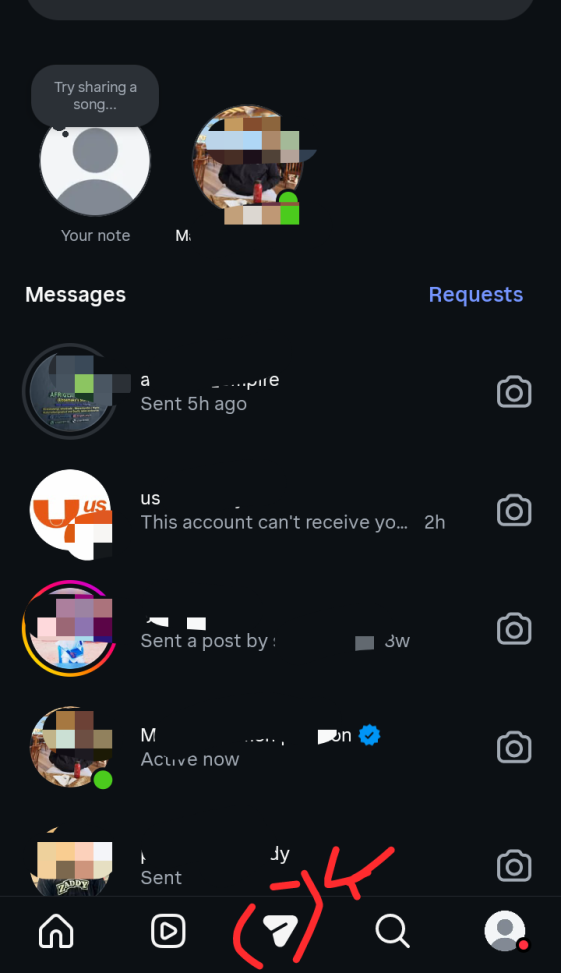
- Hit the messenger icon on the app. It’s located at the bottom as shown in the screenshot below.
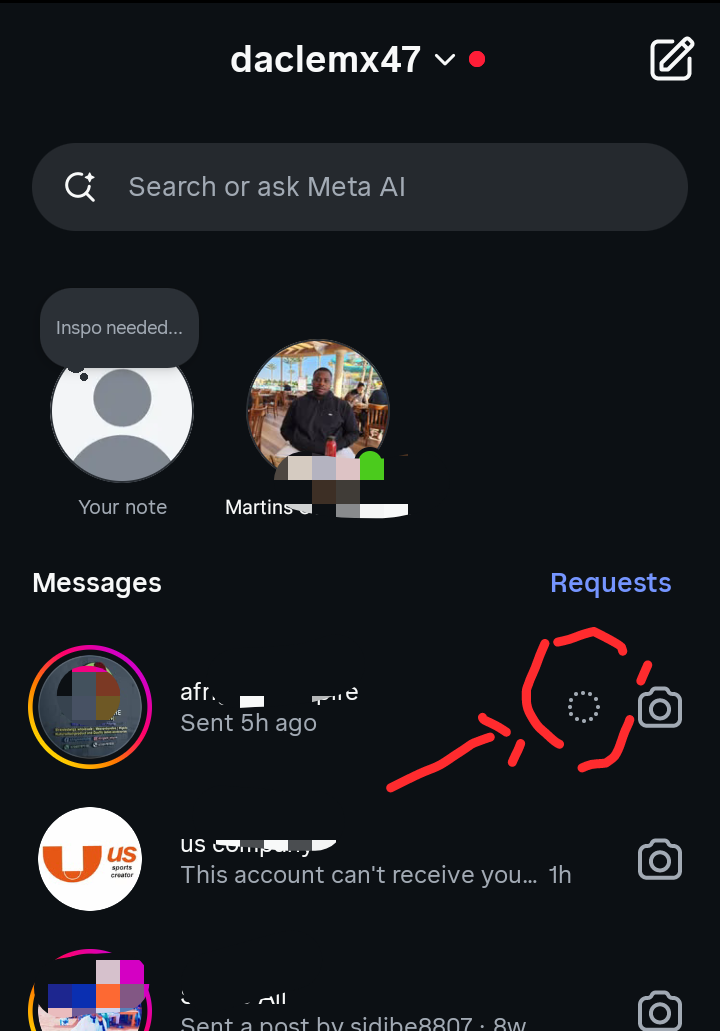
- Select the chat you initially turned on the vanish mode for. You’ll find a circle next to it. The circle indicates that vanish mode was turned on for the chat.
- Swipe up from the bottom of the chat screen and release it. That’s the quickest way to turn off vanish mode.
Handy Tip: Another way to turn off disappearing messages is to open the chat you set the vanish mode for. On the chat, click on “Change” and turn off disappearing messages.
iPhones/iOS device: How to turn off vanish mode for iOS devices:
If you’re using iPhones or iPad, here is how you can switch off the disappearing message mode. Follow the steps below:
- Open the Instagram messenger application on your iOS device.
- Hit the messenger icon to have all your chats in display
- Locate the chat where you had the vanish mode turned on.
- While on the chat, from the bottom of the screen swipe up and release immediately. This helps turn off the vanish mode for the chat.
A Handy Tip: Another simple strategy to turn off disappearing messages on Instagram is to open the chat and click on “Change.” You’ll find it written in blue. Once the options pop up, choose “turn off disappearing message.” That’s how to turn off vanish mode on Instagram.
How to turn off vanish mode on Instagram on Web/desktop Computer

Turning off vanish mode on Instagram when using a mobile phone is a straightforward process. Unfortunately, the same cannot be said for the desktop or web version.
While you can access Instagram, and chat via the web or desktop version, you won’t have access to several settings. One of those settings is the vanish mode.
To put it simply, you cannot set the vanish mode on Instagram web or desktop.
Why You Can’t Turn off Vanish Mode on Instagram
We have discussed how to turn off vanish mode on Instagram. The process is straightforward. You can swipe up to turn disappearing message (vanish mode) on, and do same to turn it off.
Unfortunately, there are cases where you might encounter challenges while trying to turn off vanish mode. If you ever encounter such, below are the possible reasons, and solutions.
1. Your Instagram application is outdated:
If you’re trying to turn off vanish mode on Instagram without success, the reason could be the app itself. There is a chance that your Instagram app needs update. If that’s the case, head over to Google Play (Android device users) or App Store (iOS device users) and update your Instagram.
Updating your app will help fix bugs the older version had that was making it hard to turn off vanish mode. Try turning off vanish mode after updating your app. If it doesn’t work, you can try other methods.
2. App cache problem:
Cache is another issue that can have an adverse effect on your Instagram app’s performance. That’s why developers advise people to clear cache whenever their phone’s performance drops. Clearing cache helps you get rid of temporary data, boosting your mobile phone’s speed and performance.
You can try turning off vanish mode after clearing cache to see if it works. If it doesn’t, then you can try the next tip.
3. Restart your mobile phone:
If you have tried both tips and still can’t turn off your Instagram’s Vanish Mode, then try this tip: Restart your mobile device. But, ensure you have whatever you were working on saved before you restart, so you don’t lose important information or document.
Restarting your mobile device can help fix several software-related problems your mobile device is experiencing. It can equally fix Instagram’s Vanish Mode.
Conclusion
With the information provided, you should be conversant with how to turn off Vanish Mode on Instagram. You can turn off disappearing message (Vanish Mode) by simply opening the chat with active Vanish Mode, swipe up and release. Another way to turn off Vanish Mode is to click “change” and turn off disappearing message from there.
Most people may want to turn off disappearing mode for several reasons. One of those reasons is to preserve their chat history. With the Vanish Mode turned off, messages can disappear once the recipient views them. You can equally setup disappearing message every 24 hours, 7 days and so on.
Frequently Asked Questions on Instagram Vanish Mode
What is Instagram Vanish Mode?
Instagram Vanish Mode is a top privacy-centered setting introduced by the platform to enable users to interact on the safely and keep their conversations private. Once turned on, messages vanish once viewed, or chat is closed. You can equally setup messages to disappear once viewed, after 24 hours, 7 days or as the case may be.
How can I turn on Vanish Mode on Instagram?
To turn on Vanish Mode, open the chat you want the setting active. Swipe up while on the chat. That’s how you turn on the Vanish Mode. You can set how long you want the messages to stay be they disappear. You can choose 24 hours, 7 days, and so on.
How do I turn off Vanish Mode on Instagram?
To get out of the disappearing message mode is simple. You can click “change” on the chat with active Vanish Mode. When you click on “Change,” you’ll find an option to switch off the disappearing message mode. Choose it and you’re done. Another way to turn off Vanish Mode is to swipe up while on the chat with active Vanish Mode. A message notifying you that the Vanish mode has been disabled will appear on the page.
Can you take a screenshot of a chat in Vanish Mode?
Unfortunately, Instagram no longer allows users to take screenshots of chats. The latest version of the app doesn’t allow users such function. It doesn’t matter whether you set the chat to Vanish Mode. Instagram doesn’t allow such function any more.